
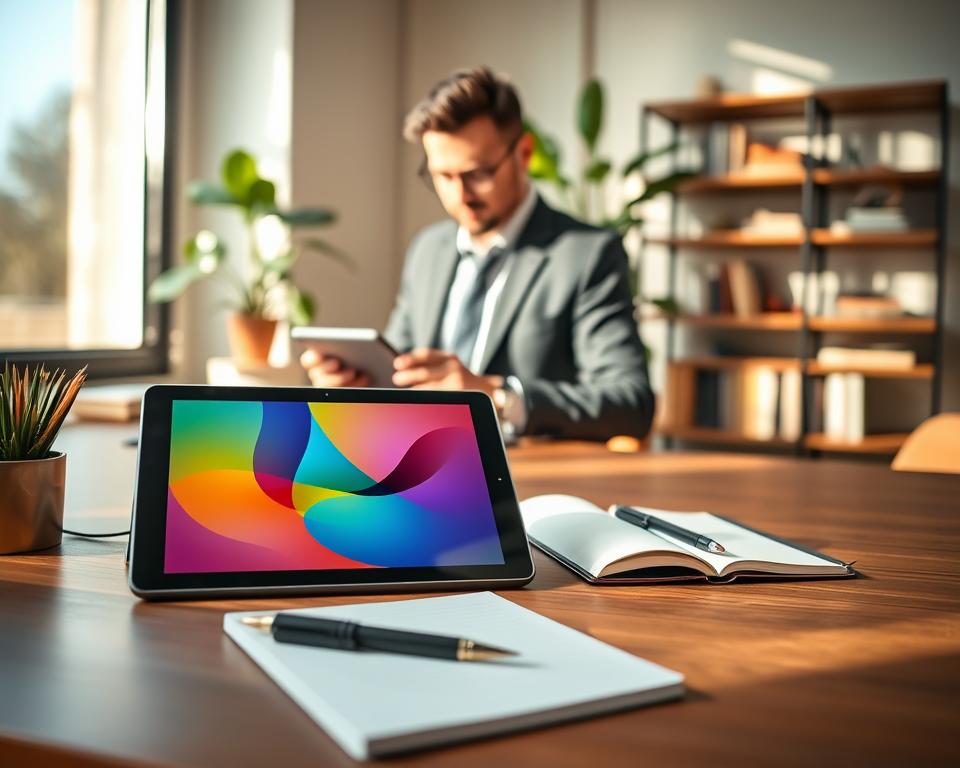
More than half of professionals feel they do better work on a tablet than on laptops. As more folks work from anywhere, using tablets wisely is key. This piece shares top tips to make the most of your tablet for work. With the right apps and gear, you can boost your workflow, wherever you are. So, let’s explore how to work smarter and up your tablet game.
Key Takeaways
- Knowing your device’s features can majorly boost productivity.
- The right gear is crucial for smart tablet use.
- Great apps can make managing your tasks easier.
- Being good at multitasking helps make the most of your tablet.
- Using digital calendars well is key for planning.
- Managing alerts can cut down on distractions.
- Keeping your tablet secure is important for safe use.
Get to Know Your Device’s Features
Learning what your tablet can do helps your productivity. Find out what built-in apps are available. They are designed to help with different tasks, like taking notes and planning your schedule. Getting to know these apps will improve your tablet use.
Explore Built-In Apps
Tablets have various built-in apps for different needs. For example, Apple Notes and Google Keep are great for note-taking. These apps work well with your tablet’s features, keeping things organized. Spend some time checking out each app and their special features to get more done.
Customize Your Settings
Adjusting your tablet’s settings can make it more fun to use. Change display settings for different lighting. Set up notifications so they don’t distract you but still keep you informed. Customizing your tablet this way improves your experience with the apps you use often.
Utilize Voice Commands
Voice commands change the way you multitask. Tools like Siri and Google Assistant let you do things hands-free. You can set reminders, look things up online, or send messages using just your voice. Adding voice commands to your day can speed up your work and boost efficiency.
Choose the Right Accessories
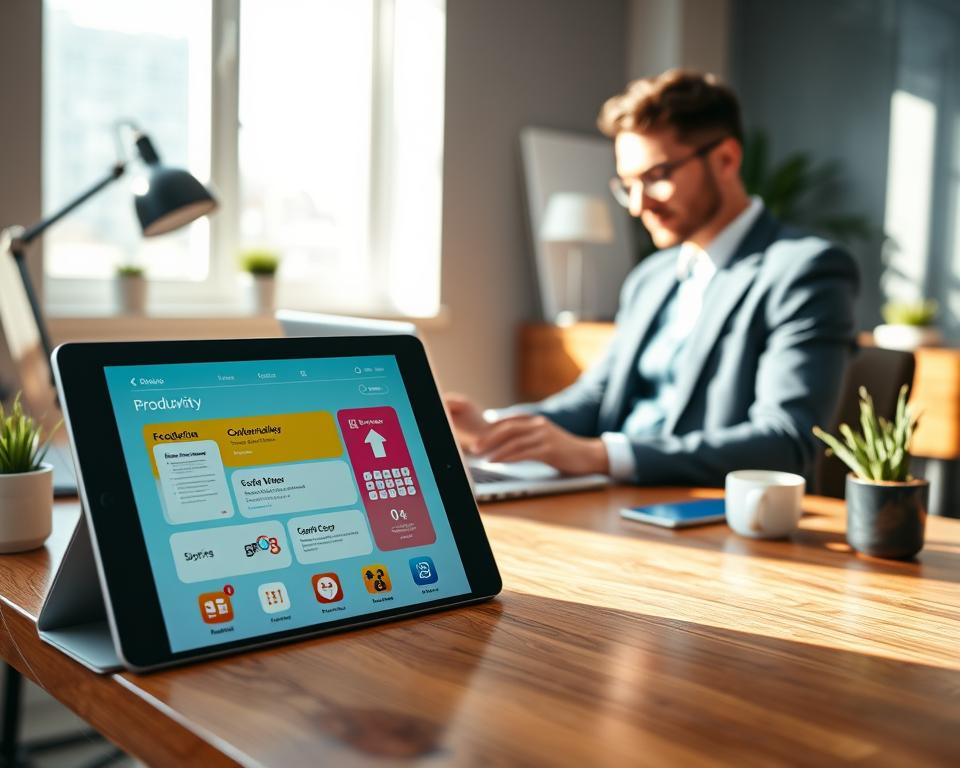
Choosing the right tablet accessories can really boost your work. They make typing and note-taking much better, ensuring you work smoothly.
Keyboard Options for Enhanced Typing
A Bluetooth keyboard makes typing much easier than using the screen. It’s faster and feels better. Brands like Logitech and Microsoft make great keyboards that work well with tablets.
Stylus Benefits for Note-Taking
Using a stylus, like the Apple Pencil or Samsung S-Pen, changes how you take notes. It lets you draw or annotate with precision. To make it feel like paper, try a textured screen protector.
Screen Protectors and Stands
A good screen protector keeps your tablet safe from scratches and is clear to view. Using a stand lets you set it at the best angle. This helps avoid eye strain and keeps you comfortable while working long hours.
Download Essential Productivity Apps
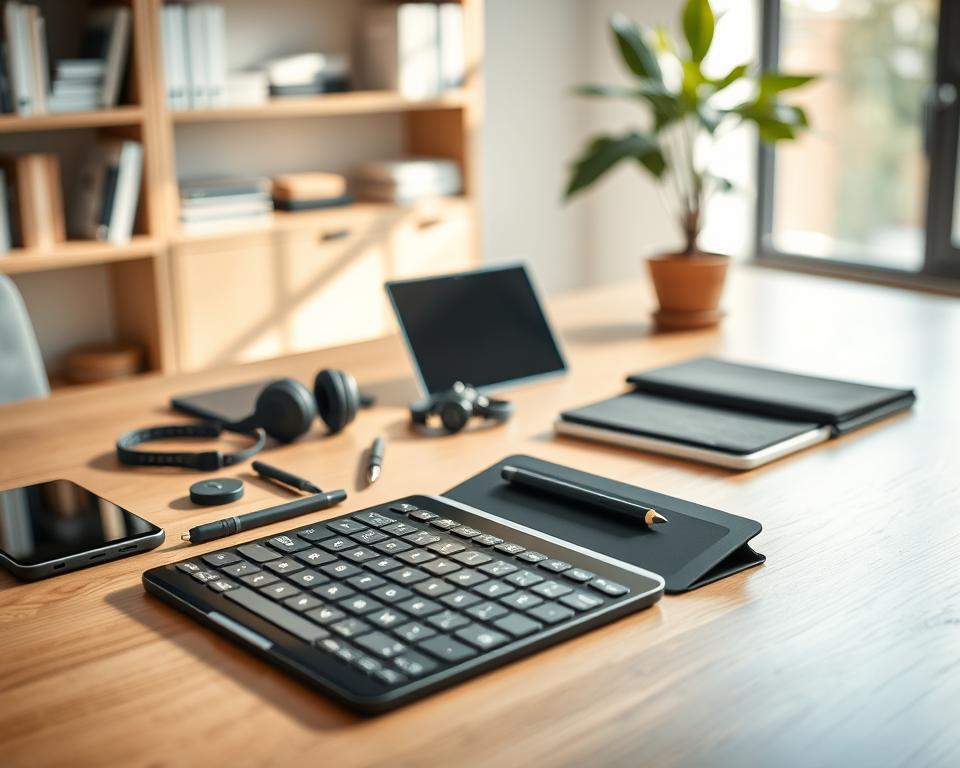
To boost your productivity with your tablet, start by downloading key apps. Look into apps for task management, note-taking, and cloud storage to improve your work flow.
Best Task Management Tools
Good task management apps are key to keep your projects in order. Tools like Trello and Asana have easy-to-use interfaces. They let you organize tasks, set deadlines, and work with others. These top productivity apps simplify your projects into easier steps.
Note-Taking Apps to Consider
Note-taking apps are important for keeping your thoughts and ideas organized. Evernote and Notion offer great features for writing notes, adding files, and making lists. Using these apps means you always have key information ready.
Cloud Storage for Easy Access
Google Drive and other cloud storage services make storing and sharing files easy. Easy access to your documents helps with working together and keeps your important files ready. These apps help you manage your work and personal tasks smoothly.
Master Multitasking on Your Tablet
Multitasking on a tablet can really boost your productivity. Knowing how to use split-screen and picture-in-picture changes your work game. These tricks let you do many things without flipping between apps. Adding an extra screen makes your space even better for team work and showing your ideas.
Split-Screen Functionality
Split-screen lets you use two apps at the same time. It’s great for looking at info while writing notes or emails. You can also move stuff between apps easily. Most tablets have this, so anyone can use it.
Picture-in-Picture Mode
Picture-in-picture mode lets you watch videos or join calls while doing other stuff. It’s perfect for following along with how-tos or meetings while you write down the main points. This keeps you focused on your work but still in the loop on videos or calls.
Use of External Displays
If you need more screen, connecting to a bigger display is key. It makes seeing and sharing your work easier. Great for showing off your projects or working together, using an extra screen means better multitasking.
Optimize Your Workflow with Shortcuts
Making your tablet work better for you boosts your productivity. Adding shortcuts to your daily work can make things faster. You can easily move around your tablet with just a few taps. Switching between apps or managing media is easy, without digging through menus.
Gestures and Quick Commands
Knowing simple gestures can make your tasks easier. Swiping down shows your notifications. Pinching or spreading your fingers zooms in or out. These shortcuts save you time so you can focus on important things.
Customizing Your Home Screen
Setting up your home screen can make your tablet more useful. Keep your most used apps close. Put similar apps together for quick access. This setup helps you find your way around your tablet faster.
Utilizing Quick Access Settings
Quick access features on your tablet let you control settings easily. You can change brightness, Wi-Fi, and screen orientation right away. This quick control helps keep your workflow smooth all day.
Stay Organized with a Digital Calendar
A digital calendar keeps your life in order using a tablet. It lets you manage events and tasks better. Start by syncing your calendars across devices. This way, you can see your schedule anywhere, like at home, work, or on the go.
Syncing Across Devices
Syncing calendars provides updates in real-time and makes working with others smoother. Changes made on one device show up instantly on all others. This keeps your appointments and deadlines in check. Utilizing services like Google Calendar or Apple Calendar makes this even better.
Color-Coding Your Schedule
Using colors helps organize your digital calendar easily. Give work, personal events, and reminders their own colors. This method helps you quickly understand your schedule without feeling stressed.
Setting Reminders and Alerts
It’s vital to set reminders on your tablet. Alerts keep you updated on meetings, deadlines, or key events. Adjust notification timings to avoid last-minute hassle, ensuring you’re always prepared.
Ensure Strong Internet Connectivity
Having strong internet connection is vital for getting things done on a tablet. Slow speeds can be a drag and get in the way of work. By following some simple steps, your online experience can improve greatly, no matter where you are.
Tips for Improving Wi-Fi Signal
To get your tablet running smoothly, boosting your Wi-Fi signal helps. Here are some ways to do it:
- Place your router somewhere central at your place.
- Avoid interference from devices like microwaves and wireless phones.
- Update your tablet often to keep it working its best.
- Use Wi-Fi extenders to increase coverage in big areas.
Mobile Hotspots for On-the-Go Work
Using a mobile hotspot can change the game for online access while moving around. Tips for better use include:
- Enable this feature on your smartphone for quick internet.
- Talk to your carrier about any extra costs.
- Set your tablet to auto-connect to your mobile hotspot.
Using Offline Features
You can still be productive without a strong internet link by using offline features:
- Use document apps offline, then sync when you’re online again.
- Apps like Google Docs and Microsoft Office have offline settings.
- Download what you need ahead of time for uninterrupted work.
Manage Notifications Effectively
In our busy world, it’s crucial to manage notifications well on your tablet. Constant alerts can break your concentration, making tasks hard to finish. This section offers ways to cut down on distractions and still get critical alerts.
Tuning Out Distractions
Start by fixing your notification settings. Turn off alerts from apps that don’t matter much but bother you often. This cuts back on distractions, helping you focus better. Use “Do Not Disturb” mode while working. It will keep notifications quiet so you can pay attention to your work.
Setting Quiet Hours
Set up quiet hours to boost your work productivity even more. Choose times to receive fewer notifications. You’ll work better without pauses. Doing this not only tackles notification management but also helps you stick to a routine. This routine improves your focus and work speed.
Prioritizing Important Alerts
Picking which notifications matter most is crucial. Decide which apps give you critical alerts that you need to see right away. Adjust your settings to get alerts from these key apps while silencing others. This way, you only get updates that truly matter, helping you keep your eyes on important tasks.
Utilize Cloud Collaboration Tools
Cloud collaboration tools change how teams work, especially on tablets. They boost productivity and smooth out remote work. With real-time editing, many people can work on documents together. This sparks new ideas and quick feedback.
Real-Time Document Editing
Real-time editing lets team members see changes as they happen. This encourages everyone to take part. Google Docs and Microsoft 365 make updates quick. They cut down on delays and help teams communicate better while working together.
Group Project Management Apps
Apps like Asana and Trello improve project management. They let users assign tasks, set deadlines, and track progress. This keeps the team on track. These apps work well with other cloud tools, improving team work and responsibility.
Sharing Files Seamlessly
Cloud services like Dropbox and Google Drive make sharing files easy. They keep all documents in one place. This means team members can get important files from anywhere, avoiding mix-ups with document versions. Easy file sharing is key for teams, especially those working remotely.
Prioritize Security on Your Tablet
Keeping your tablet secure is very important. These days, we store a lot of private information on them. To keep your data safe, it’s crucial to follow some security steps.
Using Strong Passwords
It’s important to create strong passwords. Mix upper and lower case letters, numbers, and symbols. Don’t use things like birthdays or simple words. Also, use different passwords for each app or service. This helps keep your data safe even if a password gets out.
Enabling Two-Factor Authentication
Two-factor authentication adds more security. It uses a password and another step, like a code sent to your phone. This makes it much harder for others to get into your tablet. It’s a key move for keeping your tablet secure.
Keeping Software Updated
Make sure your tablet’s software is up to date. Software updates fix security problems. You can set updates to happen automatically or remind yourself to check often. By keeping your software current, you use the newest security features.
| Security Measure | Description | Benefits |
|---|---|---|
| Strong Passwords | Complex passwords that combine letters, numbers, and symbols | Protects accounts from unauthorized access |
| Two-Factor Authentication | Requires a second verification method in addition to a password | Enhances account security significantly |
| Software Updates | Install the latest updates to your tablet’s operating system and apps | Fixes security vulnerabilities and improves performance |
Take Breaks to Boost Productivity
Taking breaks is key to staying sharp and effective. The Pomodoro technique uses work intervals with short breaks. It boosts focus and prevents burnout. It’s also vital to take mental health days and get physical activity. These steps clear your mind and boost your work efficiency.
The Pomodoro Technique
The Pomodoro technique divides your day into focused segments. You work for 25 minutes then break for 5 minutes. After four of these cycles, take a 15 to 30-minute break. This helps keep your mind clear and focused.
Importance of Mental Health Days
Mental health days are crucial for recharging. They help prevent burnout and keep you productive. Know your limits and allow yourself to rest.
Finding Time for Physical Activity
Exercise boosts your productivity. Even short exercises can refresh your body and mind. Making time for a walk or workout is key to staying productive.
Discover Tablet-Based Learning Resources
Having a tablet means you can easily learn new things wherever you are. There’s a big variety of learning resources for tablets. These let you explore new subjects or get better at what you already know, all from your couch or while moving around. You can find something interesting, no matter what you want to learn.
Online Courses for Skill Development
Coursera and Udemy have lots of online courses for different interests and jobs. These courses are interactive, helping you learn skills you can use right away. With online courses, you can learn on your own time, making education fit into your life.
Podcasts for Professional Growth
Podcasts are a great way to learn while doing other things, like commuting or working out. They offer useful tips and insights from industry experts. Listening to discussions on trends and experiences keeps you in the loop, even when you’re busy.
E-books and Industry Journals
E-books and industry journals are full of deep insights and detailed information on many topics. With a tablet, it’s like having a whole library in your hand, ready when you are. They help you understand things better and stay up-to-date in a changing job market.