

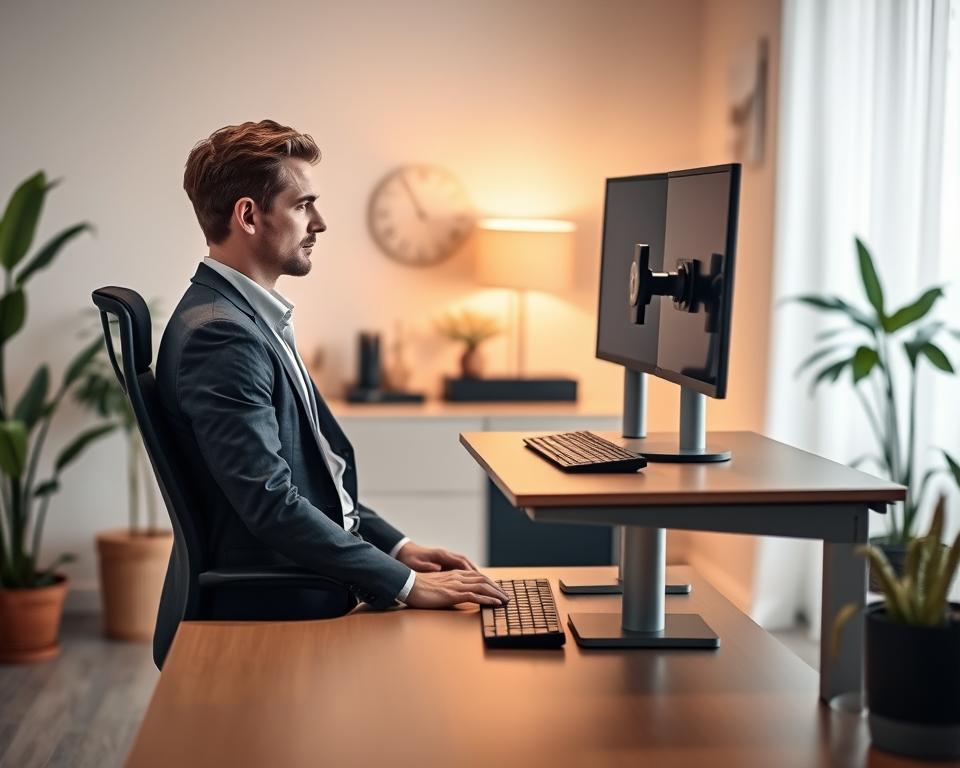
Did you know around 70% of American workers feel discomfort because of their desks? This fact shows how important it is to set up monitors correctly to avoid pain and be more productive. If your monitor is in the wrong spot, it can cause bad posture, muscle issues, and tire out your eyes. Knowing where to place your monitor can make your desk a much healthier place and help you work better.
Key Takeaways
- Monitor setup ergonomics play a crucial role in workplace health.
- Improper monitor positioning can lead to discomfort and productivity loss.
- Correct monitor height and distance are essential for reducing strain.
- Investing in ergonomic equipment boosts productivity and well-being.
- Regularly assess your monitor setup for optimal performance.
Understanding the Importance of Monitor Setup Ergonomics
Ergonomics is key to making a comfortable and efficient workspace. It designs work areas that fit our bodies and behavior. Using ergonomic rules helps us avoid injuries and work better. Especially, how we set up our workspace with technology is very important.
How you position your monitor is crucial for a health-friendly work area. A wrongly placed monitor can harm your health, causing neck, shoulder pain, and eye strain. It’s vital to have your monitor at the right height. This helps you look at it comfortably, keeps your eyes relaxed, and supports good posture.
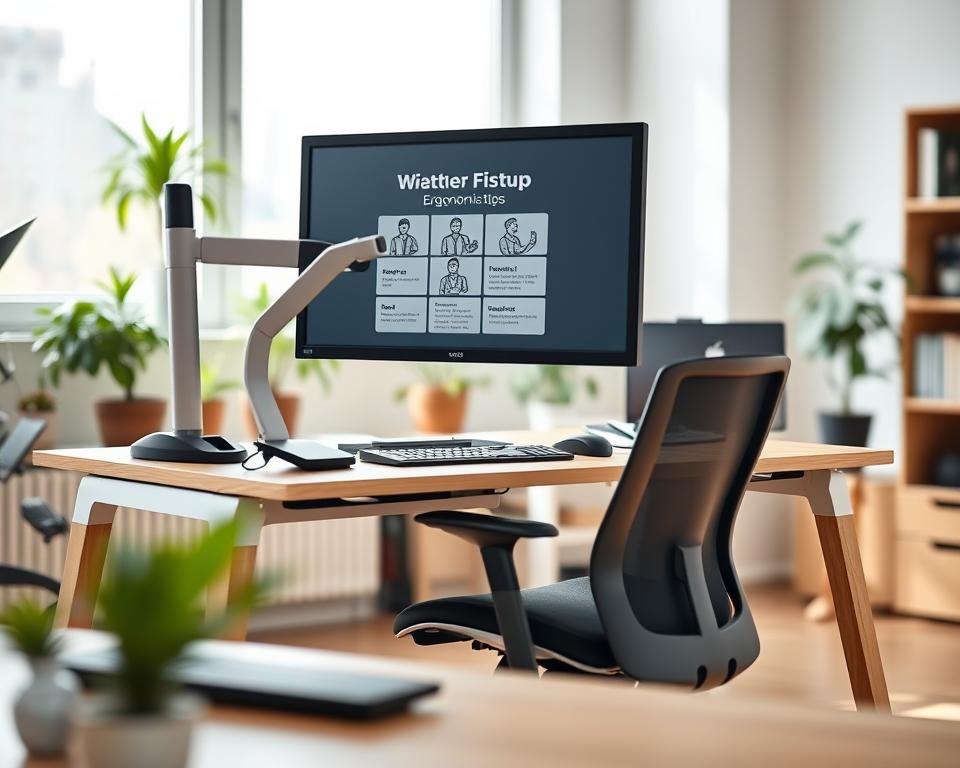
| Aspect | Importance |
|---|---|
| What is Ergonomics? | Science of optimizing workspace for safety and comfort |
| Workplace Ergonomics | Reduces risk of injuries and increases productivity |
| Ergonomic Principles | Guidelines for proper monitor height and position |
| Monitor Positioning Matters | Critical for preventing discomfort and eye strain |
| Health Effects of Monitor Height | Improper height leads to physical strain and headaches |
| Eye Strain | Can result from prolonged use of poorly positioned monitors |
Learning about these ideas can really improve your work life. It makes work not just more productive but healthier too.
The Ideal Height for Your Monitor
Finding the right monitor height is key for a good desk setup. It makes sure you’re comfortable and helps prevent strain. To get it just right, you need to know what works best for you and adjust as needed.
Height Guidelines for Different Users
The top of your screen should be at or slightly below eye level. This way, you won’t have to bend your neck, keeping you comfy for longer. Everyone is different, especially if you wear glasses. Making small changes can make a big difference in how comfortable you feel.
Adjusting for Comfortable Viewing
Your monitor should tilt 15 degrees below your straight-ahead view. This position is easy on your eyes and helps you focus. Keep the screen right in front of you to avoid turning your body. Doing this sets up a space where you can work well and enjoy it.
Optimal Distance from Your Monitor
Finding the right spot to sit from your monitor is key for comfort and less strain. The best monitor distance helps you avoid eye and neck pain. Experts say sitting 20 to 40 inches away from the screen is usually best. Yet, this may change based on what you like and how big your monitor is.
Recommended Screen Distance
Sitting as far as your arm can reach is a good rule for a comfy distance. This setup makes reading and seeing pictures easy, keeping neck and eye strain away. You might need to move your monitor closer or further away until it feels just right for you.
How to Measure the Right Distance
To find the perfect screen distance, lean back and stretch your arm out. This helps you figure out the best spot for your monitor. After that, adjust your monitor so everything on it looks clear and is easy to see. Making sure your monitor is at the right distance is super important for avoiding eye strain.
Choosing the Right Monitor Size and Type
Choosing the right monitor size and type is key to a good workspace. Different types of monitors, like LCD or LED, affect your work area. It’s all about finding what fits your needs best.
Factors to Consider When Choosing
When picking out a monitor, consider your desk space first. Big screens are great for seeing things clearly but need room. Then, think about the resolution for clear images and less eye strain.
Adjustable monitors are good for comfort. They let you change the height for the best posture. This helps keep you comfortable while working.
Benefits of Larger Monitors
Bigger monitors boost productivity. They let you use many applications at once without a mess. This makes your workflow smoother and keeps your eyes from getting tired.
When you have detailed work, a large monitor is a big help. It’s easier to see the details. This makes your office experience better.
The Role of Monitor Tilt and Angle
A comfortable workspace depends a lot on how you set up your monitor. The tilt angle of your monitor is key. Aim for a tilt between 10 to 20 degrees towards you. This helps cut down on eye strain by keeping your eyes comfy.
This tilt angle makes it easier on the eyes and gives you a straight view, which helps you focus and do better work.
Ideal Tilt for Reducing Eye Strain
Setting your monitor at a slight angle helps a lot with eye strain. It makes looking at your screen comfortable, so you don’t get tired as quickly. It’s smart to check how your monitor is positioned often to keep your eyes and neck happy.
Adjusting for Glare and Reflection
For the best view, think about where your monitor is and where light comes from. Keep your monitor away from direct light to avoid glare. Using things like anti-glare filters helps make your screen clearer and stops annoying reflections.
These steps make your screen easier to see and make your workspace better.
Desk and Chair Compatibility
Finding a comfy desk and chair combo is key for a good workspace. People often forget how important it is to match their desk with their chair. Choosing the right desk height helps avoid strain and keeps your posture healthy. So, measuring your workspace well is necessary to ensure everything fits right.
Finding the Right Desk Height
For a good desk height, your elbows should be at a 90-degree angle while sitting. And your feet should rest flat on the ground or a footrest. Measuring your space helps find the best desk height for you. If the desk is too high or low, it can cause discomfort and bad posture over time.
Choosing an Ergonomic Chair
Selecting the right ergonomic chair means looking for one that supports your body well. Search for chairs that have lumbar support, adjustable height, and armrests. These chair features to consider help ease lower back pressure. A great chair not only matches your desk but also encourages better posture, making your workspace more health-friendly.
Importance of Lighting in Your Workspace
Right lighting boosts productivity and comfort at your desk. Learning about light options can change how you feel and work. Mix natural and artificial lights to make your space better for any job.
Natural vs. Artificial Lighting
Natural light is the best for lighting up a room. It can make you feel better and keep your eyes from getting tired. Try to place your desk where it gets lots of sunlight.
But in places without much sun, artificial light is needed. You can use desk lamps or ceiling lights to keep your area bright and comfy.
Reducing Glare on Your Screen
It’s important to cut down on screen glare for a comfy work space. Make sure your monitor is away from direct light from windows or above. Use shades or curtains to control sunlight coming in.
Also, using matte screen protectors can stop glare. This makes sure your work area is nice to be in.
Accessorizing Your Monitor Setup
Adding the right accessories to your workspace can greatly increase comfort and productivity. With ergonomic accessories for monitors, your desk becomes better organized and easier to use. This makes your workdays go by smoother. Using monitor stands and document holders changes the way you work with your computer.
Monitor Stands and Risers
Monitor stands or risers are key for setting your screen at the right height. They lift your monitor to eye level, which helps cut down on neck strain and improves your posture during long work hours. These accessories come in various styles, adding both function and style to your workspace. Pick one that not only looks good with your desk but also supports your monitor’s weight and size.
Using Document Holders and Stands
Adding document holders to your setup keeps your reference materials tidy and within reach. Ergonomic document stands let you put documents right at eye level. This cuts down on how much you need to move your neck. Having your documents close to your monitor makes for an easier workflow, as you spend less time flipping between your reading materials and the screen. A good document holder can greatly improve your productivity and comfort at work.
| Accessory Type | Benefits | Recommended Brands |
|---|---|---|
| Monitor Stands | Reduces neck strain, increases desk space | Vivo, Fellowes, 3M |
| Monitor Risers | Adjusts monitor height for proper alignment | AmazonBasics, HUANUO, Mount-It! |
| Document Holders | Keeps documents at eye level, reduces neck movement | Safco, Fellowes, Targus |
| Ergonomic Document Stands | Enhances productivity, promotes good posture | Kensington, Poppin, BOSTITCH |
When you carefully add these accessories to your monitor setup, you create a workspace that supports comfort and efficiency. Choosing the right tools like monitor stands or ergonomic document holders can really change your workday for the better.
Maintaining Good Posture While Working
It’s key to sit comfortably and correctly when working at a desk to stay healthy and productive. Make sure your back is straight, and your feet are flat on the ground. Also, place your computer screen at eye level. This way, you stay focused during work and avoid discomfort and tiredness later on.
Tips for Sitting Comfortably
Follow these ergonomic sitting tips for better posture:
- Adjust your chair so your knees bend at a right angle and your feet touch the floor.
- Choose a chair that supports your spine’s curve to lessen back stress.
- Put your monitor at eye level to keep your neck and eyes strain-free.
- Keep your wrists straight and hands at or below elbow level when typing.
Exercises to Relieve Tension
Take short breaks for exercises to ease muscle tightness and boost your well-being. Try these ergonomic stretches:
- Do gentle neck rolls to loosen tension in your shoulders and neck.
- Shrug your shoulders to let go of tension.
- Stretch your wrists to reduce typing strain.
- Stand and walk a bit around your workspace to get your blood flowing.
Regular Breaks and Eye Care
It’s vital to protect your eyes, especially with long screen times. The 20-20-20 rule is a great way to do this. It helps lessen eye strain and tiredness. Following this rule gives your eyes the break they need to stay healthy.
The 20-20-20 Rule Explained
Here’s what the 20-20-20 rule means: every 20 minutes, pause and look at something 20 feet away for at least 20 seconds. This technique helps your eyes relax. It fights the negative effects of too much screen time.
Incorporating Movement into Your Day
Breaks are good for both your eyes and overall health. Moving around at work is key to feeling better and keeping your blood flowing. Try these easy active habits:
- Stand up and stretch every hour.
- Take short walks in your area.
- Do simple exercises like rolling your shoulders or stretching your neck.
Adding these actions can make your workplace better and focused on health. Look after your eye health and well-being for a productive workday.
Evaluating Your Monitor Setup Over Time
Spending more time at your desk means you should check your monitor setup often. Doing this lets you find ways to make your space more comfortable. If you see that your screen setup could be better, it’s essential to act on it.
Facing continued discomfort or feeling that your tech is old shows it’s upgrade time. Problems with getting things done could also mean you need a better setup.
Signs It’s Time for an Upgrade
Notice any discomfort when looking at your screen. Pain in your eyes, neck, or back might mean your setup needs change. Old monitors might lack new features that help you sit better and use them easier.
Collecting Feedback on Your Setup
What employees say about their space is super valuable. Asking them how they feel about their work area gives you clues on comfort and getting things done. Doing surveys regularly helps understand their needs, leading to a better space for all.